Your first audio translation
A step-by-step walkthrough from file upload to translated result.
Written By Umakhan Magomedov
Last updated 6 months ago
This guide walks you through translating an audio file from start to finish. It takes about 30 seconds from upload to result.
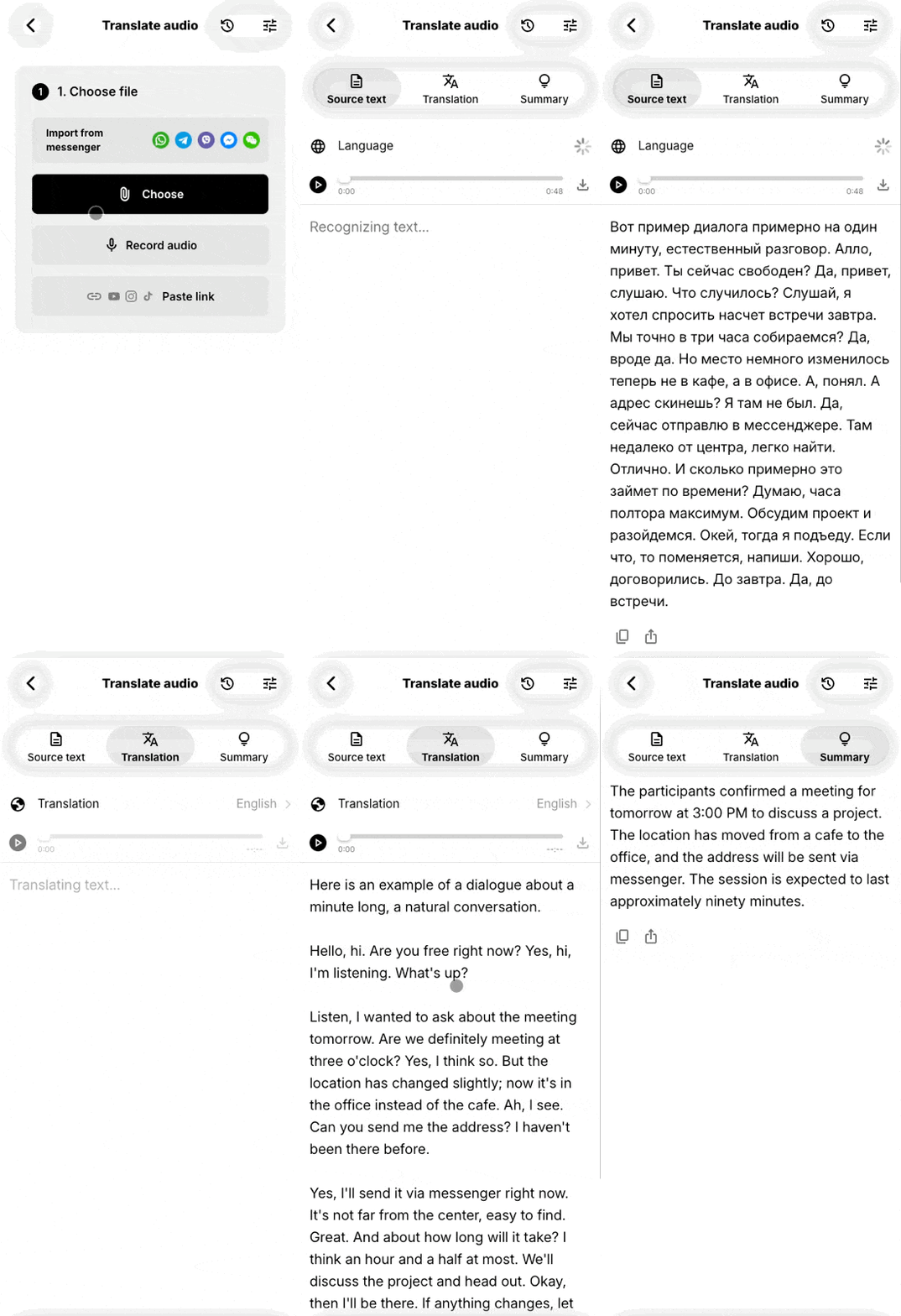
Step 1. Open Translate Audio
Go to the Tools tab and tap Translate Audio.
Step 2. Add your audio
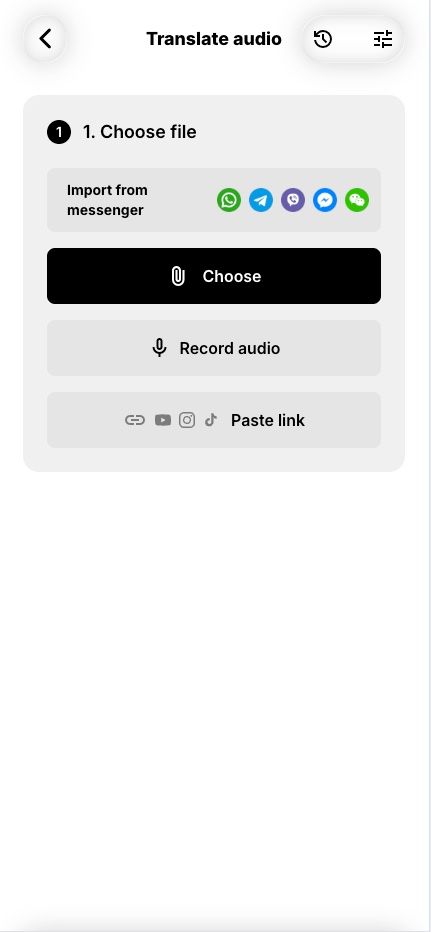
You have four ways to add audio:
From device: tap Choose from device and pick an audio or video file. Max size: 10 MB.
Record: tap Record audio to capture audio directly in the app.
From a messenger: in Telegram, WhatsApp, Viber or iMessage, open the voice message, tap Share and select VocaLingo. The file opens automatically.
From a link: tap Paste link and enter a YouTube, Instagram, TikTok or direct audio URL.
Step 3. Choose the target language
Tap the language button at the top and select the language you want to translate into. VocaLingo supports 40+ languages.
Step 4. Translate
Tap Translate. VocaLingo processes the audio in three steps:
Recognizes the speech and shows the original text in the Original tab.
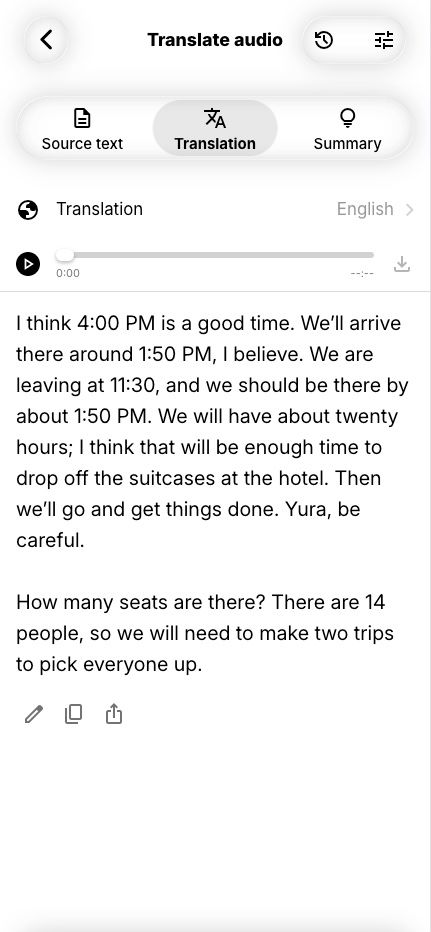
Translates the text and shows it in the Translation tab.
Generates a voiceover in the target language. You can play it right in the app.
ℹ️ The Summary tab gives you a short version of the content, useful for long recordings like podcasts or interviews.
Step 5. Listen, copy or share
In the Translation tab you can play the audio, copy the translated text or share it. The result is saved to history automatically. You can return to it any time.
Voice settings
Tap the settings icon before translating to adjust how the voiceover sounds:
⚠️ Voice cloning costs more tokens and takes longer. For a quick first try, keep the default OpenAI voice.